Search

Sunday, August 30, 2015

Tuesday, June 30, 2015
Learning SAP BusinessObjects Dashboards
About This Book
- Connect to your data and create business-driven interactive dashboards using SAP BusienssObjects Dashboards 4.1
- Make better business decisions, analyze information, and maximize the value of data with the help of these eye-catching dashboards
- A step-by-step guide that will help you to master dashboard creation using SAP BusinessObjects Dashboards
Who This Book Is For
Table of Contents
What You Will Learn
- Create interactive dashboards for both desktop and mobile users
- Add charts, single-value components, and maps to your dashboard
- Use selectors to control your dashboard
- Use advanced features such as dynamic visibility, insertion, and alerts
- Style your dashboard by adding images and control a dashboard component's appearance
- Export, publish, and import a dashboard
- Connect your dashboard with real dynamic data using the connection manger
- Find ways to secure your dashboard
In Detail
Authors
Taha M. Mahmoud

Wednesday, December 4, 2013
SAP Dashboard Designer (Xcelsius) Session # 6 (Calender Component)
This session we will talk about how to configure calender component in SAP dashboard Designer
Friday, November 8, 2013
Business Objects (BO) Interview Questions [Part # 1]
1) What is alias table means? When we should use it & how to create it?
Alias Table: Is a copy (alias) from a database object.When to use it: we normally create an alias if we have one dimension shared among more than one fact table. to avoid loops we create as many aliases from the shared dimension table and use aliases to connect to fact tables.
How to create it? Right click on the required table and select alias from the menu. You need to give a unique name to alias table.
2) What is Derived table? When shall we use it? How to create it?
Derived table: is like database view. you can create it inside universe designer if you don’t have database privilege to create database view. You need SQL select query to define the view and name to be assigned to derived table.When to use it: We use derived table in the following cases
- You have complex query with advanced SQL coding.
- if you have one master lookup table and you want to create small customized version for each lookup included in this lookup table.
for more detail information check this link [Derived table in SAP BO]
3) What is Scope of Analysis?
Scope of Analysis is one of the most powerful features in business objects. Now you can easily build your custom hierarchies and use them in your report to navigate through data. To make it easy I will consider a small example then go step by step starting from building the universe and end with how to use the drill feature to navigate through data.For more detailed information check this link [What is Scope of Analysis?]4) What is Micro Cube in SAP Business Objects
When you create data query in SAP business Objects the data retrieved and stored in a Micro cube, known also as Webi micro cube. This Micro Cube is stored along with the report and the report size will vary based on the saved micro cube size. BO reporting engine will use this microcube to display data on the report based on the selected objects and based on the aggregation function associated with each measure. to reduce the micro cube size you need to assign database aggregation function on each measure. This will submit a grouped by query to the data base and it will reduce the micro cube size and it will enhance the overall report performance. For more information check the following link [Micro Cube in SAP BO]5) What is aggregate aware function? when to use it?
This function used to increase the performance by directing the report query to select objects form the aggregated table instead of the detailed table.It may be also used to make some objects incompatible with some others. The best example for such case is the stand alone table that you add in your universe for a specific report. For sure you don’t want the user select other incompatible objects from other incompatible tables. for more detailed information check this link [@Aggregate_Aware()]
You can find a complete step by step guide on how to create a Universe from scratch using SAP BO information Design Tool in "Creating Universes with SAP BusinessObjects" book:
Friday, November 1, 2013
Business Objects
What is business objects?
Business objects is one of the leading companies in BI & Reporting. The company was created on 1990 and finally accrued by SAP on 2007. There were many products offered by business objects but the most famous one is Business Objects XI. The first official SAP release was SAP Business Objects XI3. The last available version of SAP business objects is BO R4 and the frame work was completely changed in that version to comply with Microsoft ribbon technology. The integration between Business objects and other SAP products was dramatically enhanced in this version as well.
Business Objects version history:
| Release Name | No of Service Pack | Release Date |
|---|---|---|
| BusinessObjects 3.x | NA | 1995 |
| BusinessObjects 5 | 11 | 1999 |
| BusinessObjects Enterprise 6.x | 9 | 2003 |
| BusinessObjects Enterprise XIR2 | 5 | 2005 |
| SAP BusinessObjects Enterprise XI3 | 5 | 2008 |
| SAP BusinessObjects BI4 | ?? | 2011 |
List of Business Objects Tools:
- Universe Designer
- Rich Client.
- Desktop Intelligence.
- Translation Manager.
- Import manager
Wednesday, October 30, 2013
Prompt in SAP Business Objects WEBI Report
Introduction:
There is 2 types of filters that you can use in create query in your Webi report.
Static Filters: Doesn't need any interaction from the end user. the criteria or filter values are impeded inside the filter and will submitted directly to the database. Static filter is either created in the universe and you can just drag and use them. They will appears like a yellow cone. You can also create your own static filters by dragging an object and set you filter values to constant or select from list of values. Again, when you refresh data fro your report it will not ask the end user to enter any values as the filter values already defined.


Dynamic Filters: [Also known as prompt] It will prompt or ask the end user to enter or select filter values before submitting the query to the database. You can create your prompt in the universe designer and make it available and ready for use or you can do it on the report development time. For more information about how to create prompt in universe click here.
To create a prompt in info view or rich client data query just drag the object that you want to use it as a prompt let say Region or Product for example. Then select the required operator, let’s say Equal to or greater than. After that you need to select Prompt in the filter value.
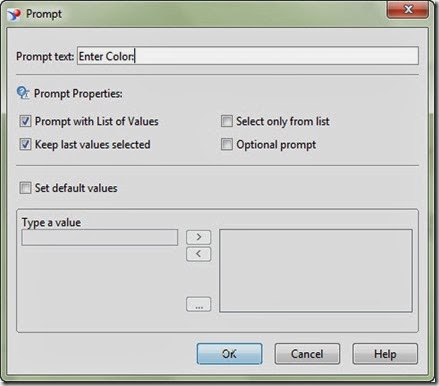
The following window will displayed to set the prompt the following prompt options:
Prompt Text: Enter the text that will be displayed for the end user to ask him to enter or select value.
Prompt Properties:
Prompt with list of values: Will display a list of values for the selected object to the end user. the end user will be able to select one or multiple value instead of entering them manually.
Keep Last Value selected: Will keep the last value entered by the end user selected.
Select only from list: end user will not be able to enter any data manually and he will just forced to select from the list of values. of course this option will be enabled only of we selected the prompt with list of values option.
Optional prompt: If this option is selected the end use will be able to skip this prompt. the value will be considered only if the end user selected a value for this prompt.
Set Default Values: You can enter Default values here.
Best Practice:
“As you can create static and dynamic filter in the universe you need to differentiate between them. we used to write [Filter] beside the static filter name like: Last Year [Filter]. and we use the “?” at the end of filter name if it is a dynamic one [Prompt] like: Enter Year ?”
“Choose a clear prompt message”
“If you will use the prompt with list of values option then you have to optimize it from the universe to insure the performance”
CORBA Initialization failed. (WIS 10901) error in WebI Rich Client
Today we faced a power frailer in our building. I was using Rich client and logged in by user name & password. After My PC was restarted I able to do the following:
- Login to rich client.
- Navigate to a Webi report and open it in rich client.
When I tried to refresh any report from Rich client I got the following error Message:
“Query Name – Universe Name
A database error occurred. The database error text is: (CS) “COBRA Initialization failed”. (WIS 10901) “

Error Message:
Code: WIS 10901
Error Message: A database error occurred. The database error text is: (CS) “COBRA Initialization failed”.
Application: Rich Client
Environment: BO XI3.1
Notes:
- You will be able to refresh the data in the same report If you tried to login to info view and refresh it from there.
Resolution:
Resolution Method # 1: Don’t log to the JR2 system. Log into the original one. The error message will be displayed if you tried to login to the system beside the (?)

Resolution Method # 2: Restart the connection server from CMS
Saturday, October 26, 2013
Create data query in business objects WEBI
In order to ask for data retrieval from Database or any support data source by business objects you need to create a query in your report. In this query you have to identify what you want to include in your report and you will define query filters as well to narrow the returned data results. If you are familiar with SQL then you will not find any troubles to understand this section. If no then you will learn SQL select statement as well as how to create query in SAP business objects WEBI.
SQL select statement:
the simple SQL statement should contains at least the following SQL clause Select-From-Where. After select clause you should enter the data that you want to display and retrieve from database. In the from clause you have to specify from which tables. And in the where clause you need to set you filters. Lets take an example
Select Statement Syntax:
Select {List of columns that you want to display}
From {List of tables}
Where {Criteria to narrow the number of returning records}
Example:
Select employee_Name, employee id
From employee
Where employee grade =A
Create Data Query in BO WEBI Report:
Now check the data query window below. you can easily find that it almost the same concept & logic. Your available data listed in the left panel. As you can see it is grouped in folder as per their business meaning and relation. you can also differentiate between dimensions, Measures & detail objects. On the right hand side you can see the select area as well as the where or filter panel. To create a query simply drag and drop data from the left side panel to the select area. if you want to create a filter, then you need to drop your object in the where are instead,
Finally to run the query just click on the refresh data button.
Create query tutorial
Find below a step by step user guide and tutorial with examples on how to create a data query in SAP business objects Webi report. Please note that this apply to rich client as well as info view.
To create a new query in your report go to data or click edit query button. The following window will open

We can classify work area here into 4 main panels
Upper tool bar:
Show hide filter ban: This icon will hide or show the filter ban. Filter ban is the area that represent the Where clause in SQL select statement and it will contains your criteria that will be used to narrow the number of returned records or to only retrieve the data corresponding to your analysis.
Show hide scope of analysis: This will show/ Hide your scope of analysis area. for more information about scope of analysis please click on the following link.
Show / Hide data manager: This icon will show or hide data ban which contains all available data based on the selected universe. We will talk about this topic in details in a moment.
Add Query: This button will create another query. You can create as many queries as you can in your report. you can use the bar at the bottom to navigate through the created queries. Please note that you can include data queries based on different universes in the same report.
Combined query: This icon should be used to create a combined query. Combined query is an advanced query that use the union-intersect or minus. Please note that combined query can be tow or more queries. The only restriction here is that combined queries should be from the same universe.
SQL: If you click on the button you will be able to see the SQL code generated by the report engine to be sent to the database engine to retrieve the required data.

Left panel
Data Business model: this panel will display a categorized list of all objects available based on the selected universe. You can drag and drop dim measures and filters as well or simply double click on them. You can use search feature to look for a specific object by name. You can change the display for the data by selecting one of the following options from the bottom:
- Display by object.
- Display by hierarchy.


Properties: from the properties panel you can access the following options:
- Query Name: You can type a meaningful name for your query here. the default query name is “Query#” where # is the current number of created queries in the current report.
- Universe: You can even change the universe from here.
- Limits: You can limit the number of records returned by your query by set one of the following options or both: Max rows retrieved or Max retrieval time. Usually we use this option during development time if the number of the returned records is huge. this will help us to test the functionality of the report and to focus on the layout. later one we can disable them when we are on UAT and production stage.
- Prompt order: You can change the prompt order from here.

Right panel
Select Area: Here you can drop your objects that you want them to be part of your analysis.

Where Area: Here you should drop your query filter or create them. Pre-defined filters know as conditions are previously created in the universe and you can just drag and use them. on the other hand you can create new customized filter as per your need.
Normal filter will contains the following:
- Object: The object that you want to filter one
- Operator: Equal to, greater than, less than,….etc
- Operand:
- Constant
- Value from list
- Prompt
- Result from another query(Any)
- Object from this query


Scope of analysis Area:
In Scope of analysis area you can customize your hierarchy levels to be used in the drill down analysis. for more information about what is scope of analysis please check this link

Bottom Bar:
You can manage your queries from the bottom bar. if you right click on this bar you will able to see this menu: You can use this menu to rename query or to run a query, duplicate a query or add a new one.

You can use the bottom right arrows to navigate or order queries.

Friday, October 25, 2013
What is Key Performance Indicators (KPI)?
What dose KPI means?
To say it in a generic way, when you start work on something you should first define your goals. After that you should start trying to achieve your goals. Then from time to time you need to check how far you are from your goals and if your performance on achieving your goals is good or bad. here KPI (key performance indicator) come. The main purpose of KPI is to show how close you are from your goal (some how) but wait!!? normally you will need more than one KPI to indicate how far you are from your goal. to make it more easier let’s take a small example or business case but before that I want to leave one final note before ending my introduction. It is clear now that the KPIs will be different from business to another and from industry to another. yes you may have same goals like increase profit or revenue. but the metrics will be changed. hmmm you should get lost by now, let’s take an example
KPI is a metric used to measure and monitor you performance on achieving your goal(s) and it will give you an indication on your performance
Example # 1:
We have a new web site. there is many income ways implemented in our site. like advertisement, exam registration fees, products sold and so one. first we need to set our goals. I will make it here very simple one. currently our net profit is 10$ and our goal is to make it 50$ by end of the facial year (don’t laugh please :-) !!?).
Goal: Increase net revenue of our web site by 500% in one year.
now we have a goal. it is time to find how to archive it. there is many factor will affect our goals and we need to focus on the important one. we called those factors: Metrics. a metric is usually a number somehow will affect your goal like number of sold products, lets define our metrics here.
Net Profit = net income – net cost
Net income= [# of sold products * unit price] --- Product income
+ [# of visitor * AD revenue per view]+[# of add clicks * earn per add click]
+ [# of scheduled exams * exam fee] -- Exam Income
Net cost = Fixed monthly site maintenance
+ product processing cost
+ Exam setup
+ …….
Now as you can see, there is some variable metrics and some static ones. for example # of visitor is a dynamic variable metric and monthly site maintenance fee is a static one. you should concentrate on dynamic one in your KPIs.
now I will use # of visitor as a metric in my first KPI. but first is it enough to have a metric. of course not. you need some how to link this to your goal (achieving 50$ by end of year). to make it more clear check the trend graph below:

As you can see the graph show you number of visitors per month. but this is not enough to know if those figures are good or bad. is 100 visitor in Jan , 65 visitor in Feb & 70 in Mar means that I will be able to achieve my goal by end of year or not. as you can see metric is just a plain numbers and here all what you can indicate is your trend. by linking your metric to time you could get an idea if your number of visitor are increasing or decreeing over time. And as we already saw in our goal definition we need to increase our visitor in general to get more Ad income. Till now this is just a trend metric and there is something missing.
In order to achieve 50$ lets say that our strategy is to focus on Ad profit this year. if I will keep everything else the same then I should get 10$ by end of year and I have to increase my average number of visitor per month. let say the old average number of visitor of may site was 60 visitor per month. If I got on the average 60 visitor per month and everything else remains the same then we should make 10$ profit by end of year. we need to calculate the new required average number of visitor (Target) assuming that we will not change the remaining factors. hmmmm let’s say that we need on the average 90 visitor per month to achieve our target which somehow will lead to achieve our goal. now the graph should like this:

congratulations, we now have our first KPI, as you can see after we added our monthly target which required to be met in order to achieve our goal you can indicate your performance month by month to achieve your goal. We can easily see that we performed well in Jan, Apr and Aug. Nearly achieved our target in may and performed bad in the remaining months. so lets recap what we explained so far.
How to define your KPIs [KPI Definition]:
Define a goal: First you need to define your goals or set of goals. If you have a store then your goals should tell you where you should be? and after how long (when?)
Define a metric: the next step is define your metric. a metric is a number that will affect your goal
Define a Target: find how your metric should behave in order to achieve your goal. target is the required behavior
Build your KPI: KPI will show how your metric will behave against the pre-set target and will indicates your performance against your target required to achieve your goal
Visual elements used to present KPIs (Charts)
in our previous example we had one measure (# of visitor) and one dimension (Time) and this why we selected the line chart because it is the best visual element to show time trend.
lets now take all the combinations:
Single value KPI: If you have one metric and there is no dimension
the best way to present single value KPIs is to use one of the following visual element component:
- Dial
- Speedometer
- Gauge

Multivalued KPI: if you have more one or more metric or one or more dimension
Case # 1: One metric & one dimension:
This case will depend on your dimension nature. if this dimension is a time dimension then it is preferred to use Line chart as it is the best to show trends. if your dimension is a cyclic one like months during year (12 month) you may use radar chart. if you have only one dimension like region or customer segment then you may use Pie chart or bar chart.
Case # 2: tow metric & one dimension:
in this case you should use the combined chart. it is a combination of line chart and bar chart. the bars will represent one metric and the line will act as the second one. your dimension will be shown in your X axis.
Case # 3: one metric and tow dimensions:
you may use one of the following:
- bar chart.
- stacked bar chart.
I will make a special post on type of charts (visual elements) and the suitable use of every one.
Key performance Indicator (KPI) types:
internal:
- to measure internal performance.
- not shared with outside the unit
- The connection to the enterprise business goals in not clear and not strongly mapped to the enterprise goals.
- still important for tracking productivity and people performance.
- Example:
- Response time.
- Delivery rate.
External:
- Measure the real metrics which directly related the enterprise main goals.
- Shared and beaked down into smaller KPIs and been measured on smaller units and departments as well.
Final Note(s)
- Score Cards: some time you may need to group more than one KPI to measure your goal, this what we call it scorecard. if all KPIs in the score card are equal in weight and contribution to achieve the goal then this is a balanced score card. if KPIs will have different weight then this what we call it unbalanced score card.
- Key Risk Indicator: KRI is exactly same as KPI. but instead of measuring or indicating performance it is indicating RISK.
- Indicators: You can use many visual effects to indicate good or bad performance. the traffic light 3 colors is the most know and famous one. but still you can use icons and fond size as well.
References & other links:
- What is a Dashboard? http://business-objects-xi.blogspot.com/2013/10/what-is-dashboard.html
Tuesday, October 22, 2013
Condition (Pre-Defined filter) in BO Universe designer
Overview:
It is a best practice to create pre-defined filters (known as conditions) to help end business users to define the required filters in their analysis and reports. for example if we have the following account statuses:
- N: Normal
- D: Dormant
- I: In Active
- C: Closed
Assume that there is business rule that state the following: active accounts are the accounts which is normal or dormant.
The best practice is to create a pre-defined filter (Active accounts) which will filter only normal and dormant accounts as per the definition. this filter will be available in the business model and the end user can easily select this filter in his/her report or analysis to narrow the report results to only active accounts.
As a best practice, you should define all your business rules during business requirements gathering session. then you need you data analyst to translate it in a technical IT form (usually SQL condition). Then you need to create the corresponding conditions (Pre-defined filters) in the business model at BO universe designer.
How to create a condition (pre-defined filter):
First you need to switch to condition list, then navigate to the folder that you want to create your condition in. this folder should some how related to your condition. for example if you have a product class (folder) and you want to create a condition to filter on electronic products like TVs, Radios…etc. then the product folder is the best place to create that condition. click on the condition icon (yellow cone) and then follow the steps in the following section to define your condition

what you need to define you condition (pre-defined filter):
Condition Name: this name should be descriptive and in business terms. For the earlier active account example. we named our filter active account because this describe the business rule clearly.
Condition description: You should write a description here about this filter, when to use it. what you expect when you use it.
Condition where: this should contains the technical SQL statement generated by the data analysis for the business rules. you can use the formula editor for more complex conditions.

Formula Editor:

Mandatory filters:
You can site your condition to be used as a mandatory filter in your universe or class by ticking the following option while creating your condition:
Use filter as mandatory in query:
Apply on universe: filter will be applied on every query generated using this universe.
apply on class: filter will be applied if any object used from the current class.
apply on list of values: filter will be applied on all LOV (list of values) generated for each object inside this class (folder). Please note that this option available only after you select apply on class

Types of conditions:
- filters: it doesn’t need any input from the user. it will apply the criteria impeded inside this condition when dragged to the query filter.
- Prompt: It will ask the end user for his input to apply the filet.